A skill is a set of instructions you can call upon — written once, then used by name.
Create a skill called "processreceipt".

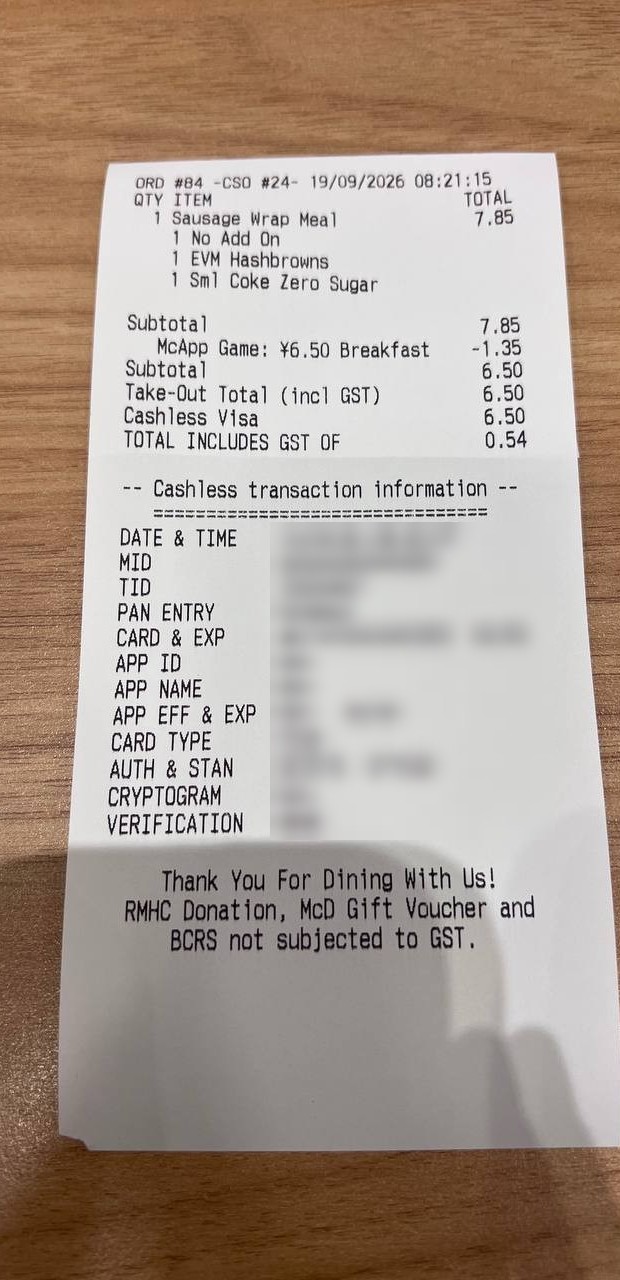
When I upload one or more receipt photos, for each one:

1. Read the receipt and extract:
   - Date (YYYY-MM-DD). Assume Singapore DD/MM format when ambiguous. If there's no date, leave it blank and flag it.
   - Description: merchant + short summary (e.g. "Starbucks – 2 coffees"). Add the currency code if not SGD.
   - Amount: final total paid, after discounts, including tax/tip. Number only, 2 decimals.
   - Expense Category from a fixed list: Meals & Dining, Groceries, Transport, Fuel, Travel & Lodging, Office Supplies, Software & Subscriptions, Utilities, Phone & Internet, Entertainment, Health, Shopping, Other.
   If the merchant or total is unreadable, ask me. Skip anything that isn't a receipt.

2. Give each receipt a running reference number (R0001, R0002…), continuing from the highest one already used.

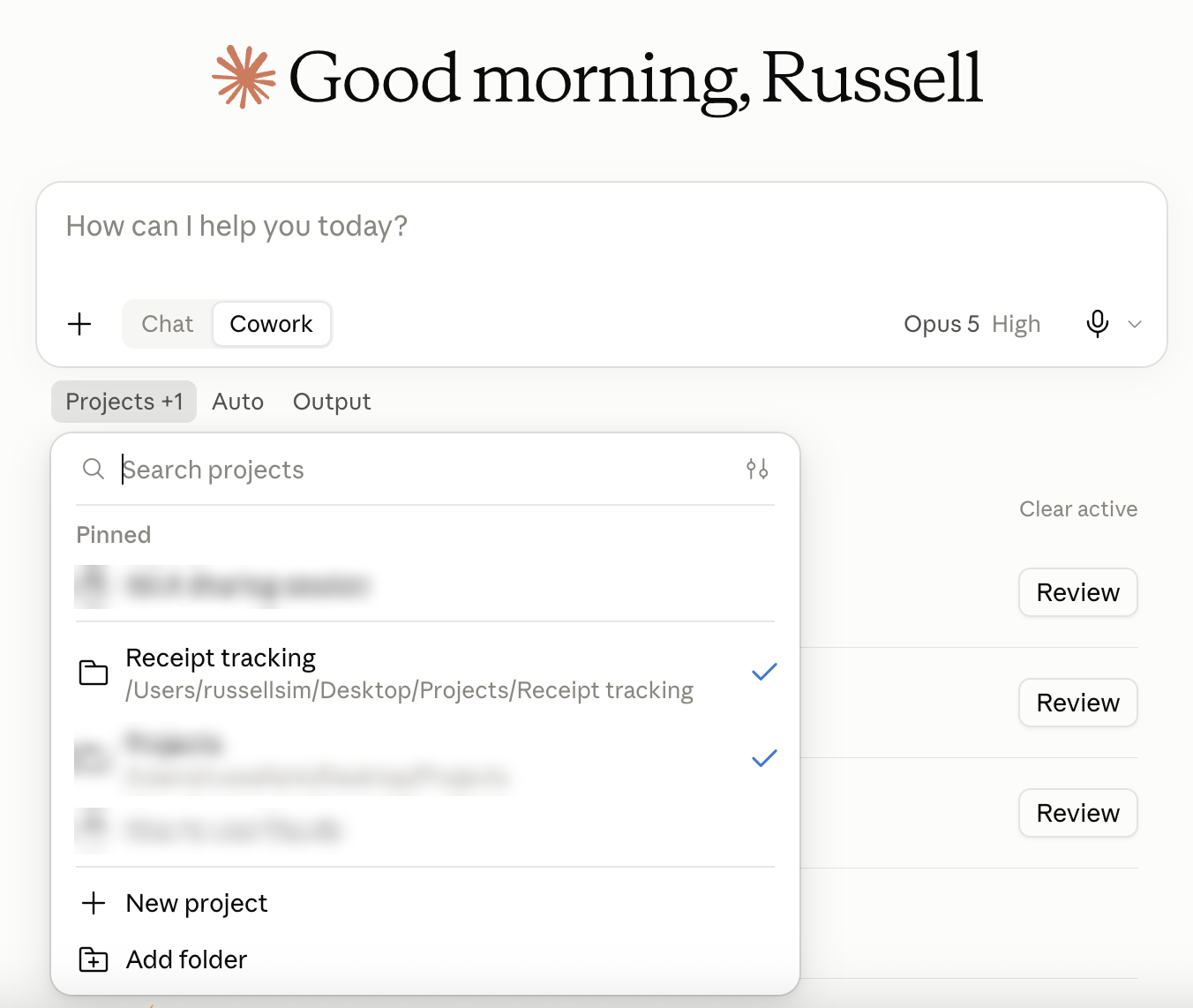
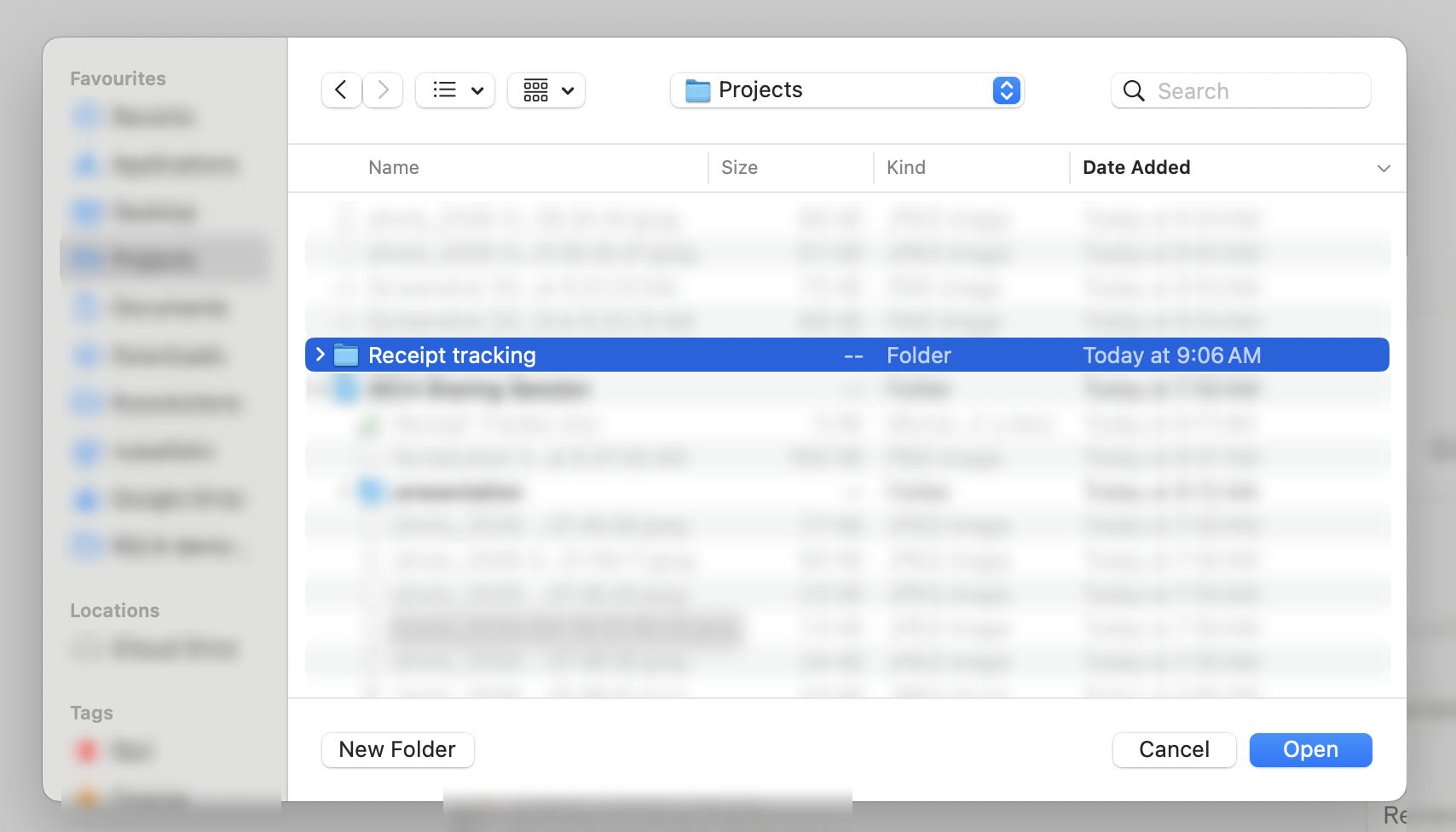
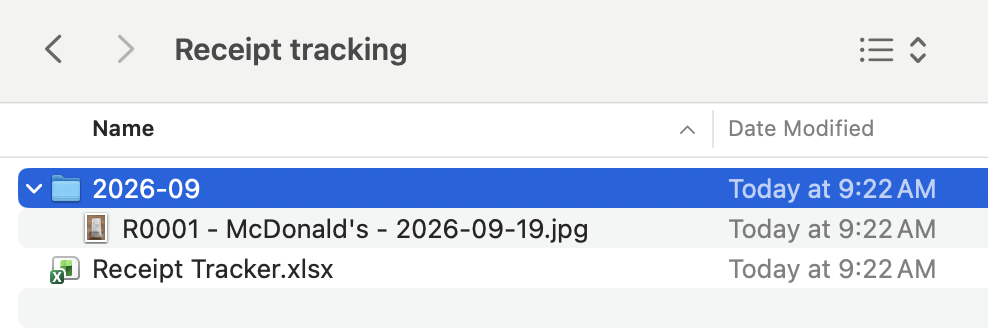
3. Save the original photo, unchanged, on my Mac in [ROOT FOLDER]/YYYY-MM/ (month of the receipt date, "Undated" if none), named "<Ref> - <Merchant> - <YYYY-MM-DD>.<ext>".

4. Append a row to [ROOT FOLDER]/Receipt Tracker.xlsx, sheet "Receipts", with columns Ref, Date, Description, Amount, Expense Category, File. Date must be a real Excel date, Amount a number, and File a clickable relative hyperlink to the saved photo. If the file or sheet doesn't exist yet, create it first: those six headers in row 1 as an Excel table with filters, header row frozen, Date formatted YYYY-MM-DD and Amount as 0.00.

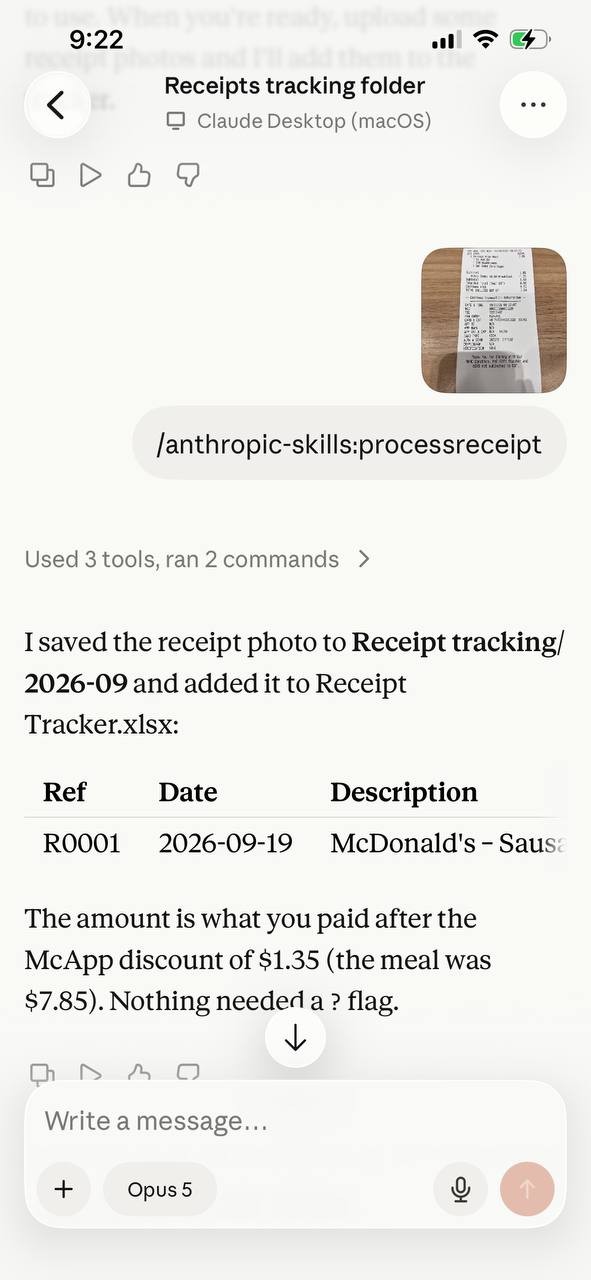
5. Reply with a short table of what was logged and anything flagged.

Rules:
- Edit the spreadsheet in place; never rebuild it.
- If the spreadsheet is open in Excel, ask me to close it first.
- If a receipt has the same date and amount as an existing row, ask before logging.
- Never renumber existing rows or delete any files.
- If my Mac isn't reachable, stop and tell me. Don't save anywhere else.
Highlighted = sets up Receipt Tracker.xlsx on the first run, so there is nothing else to paste.Change [ROOT FOLDER] to your own, then Save when Claude offers the skill.After saving, type /processreceipt to use it.
Cowork by Claude · 3 of 4
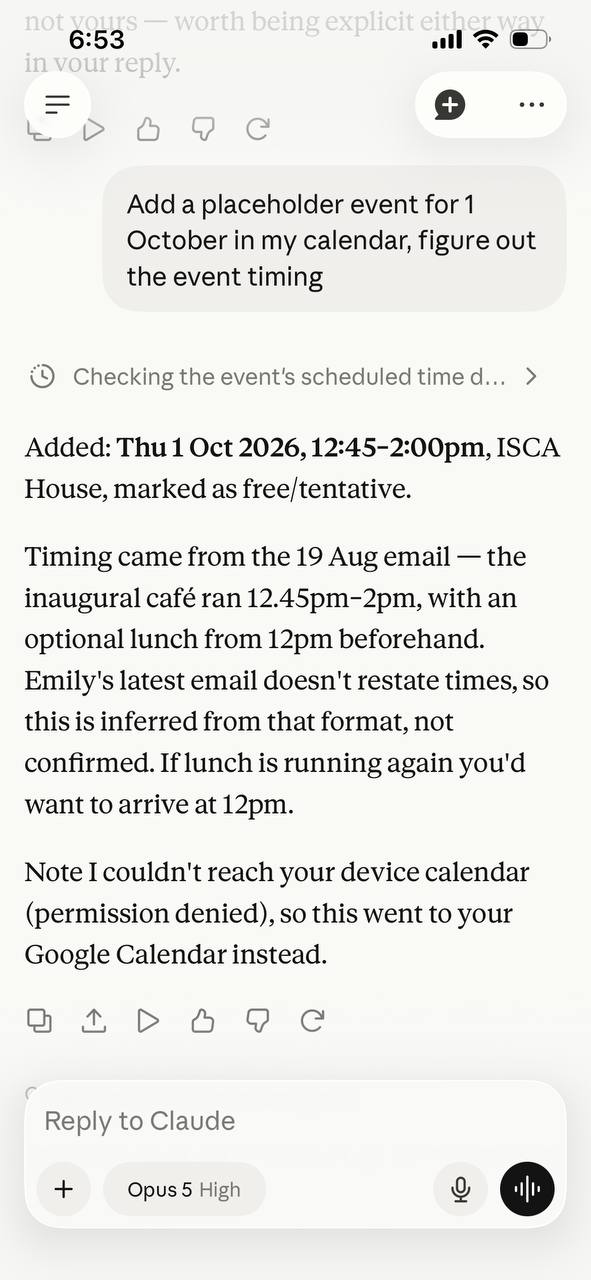
Cross-device workflow
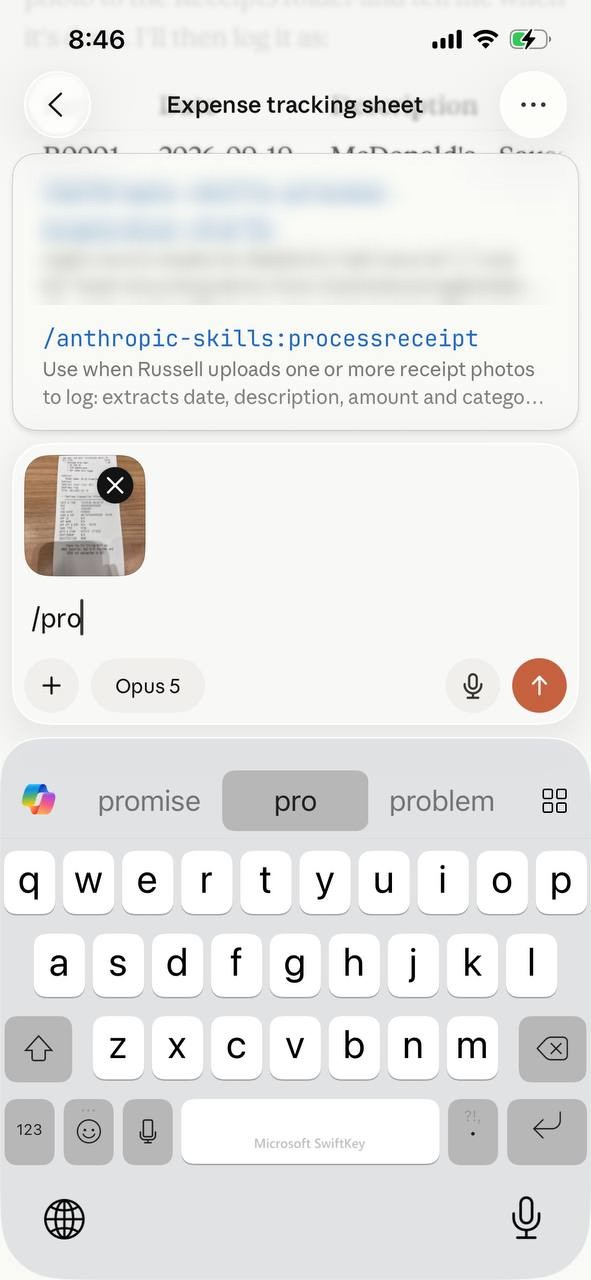
1Take a photo on your phone
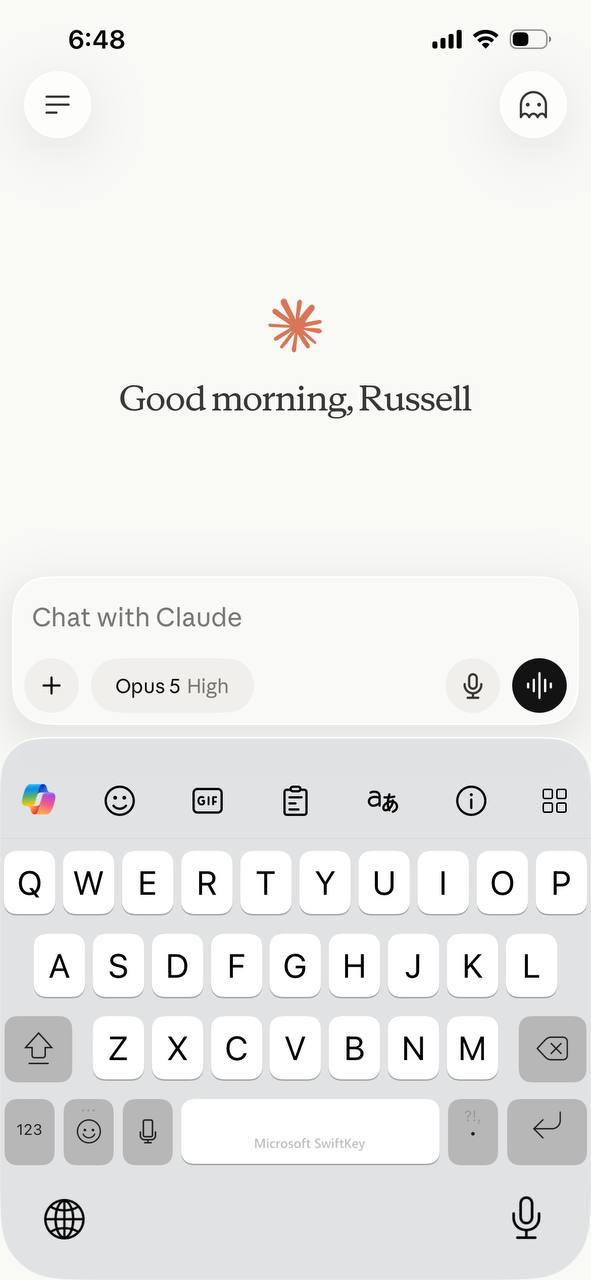
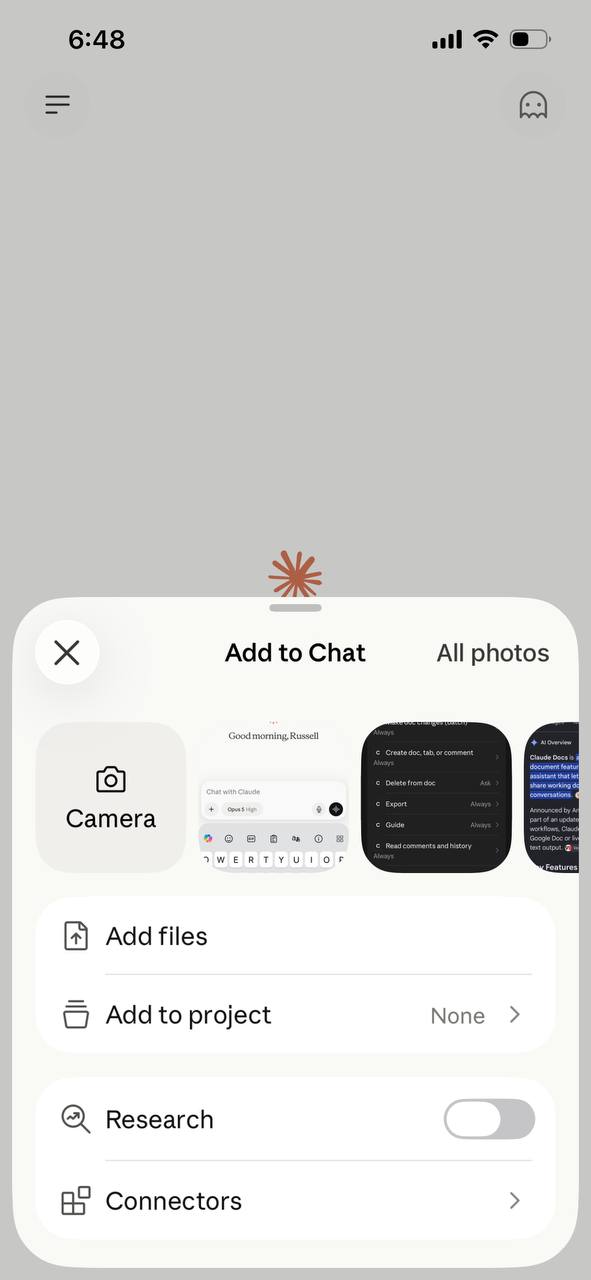
2Attach it in the Claude phone app, call the skill (/processreceipt)
3Done on the computer
1
2
3
Cowork by Claude · 4 of 4
Filed, renamed and logged
Claude saved the photo in a month folder, gave it a reference and a clear name, and added a row to Receipt Tracker.xlsx.
1Saved in 2026-09 and renamed
2New row in the tracker, with a link to the file
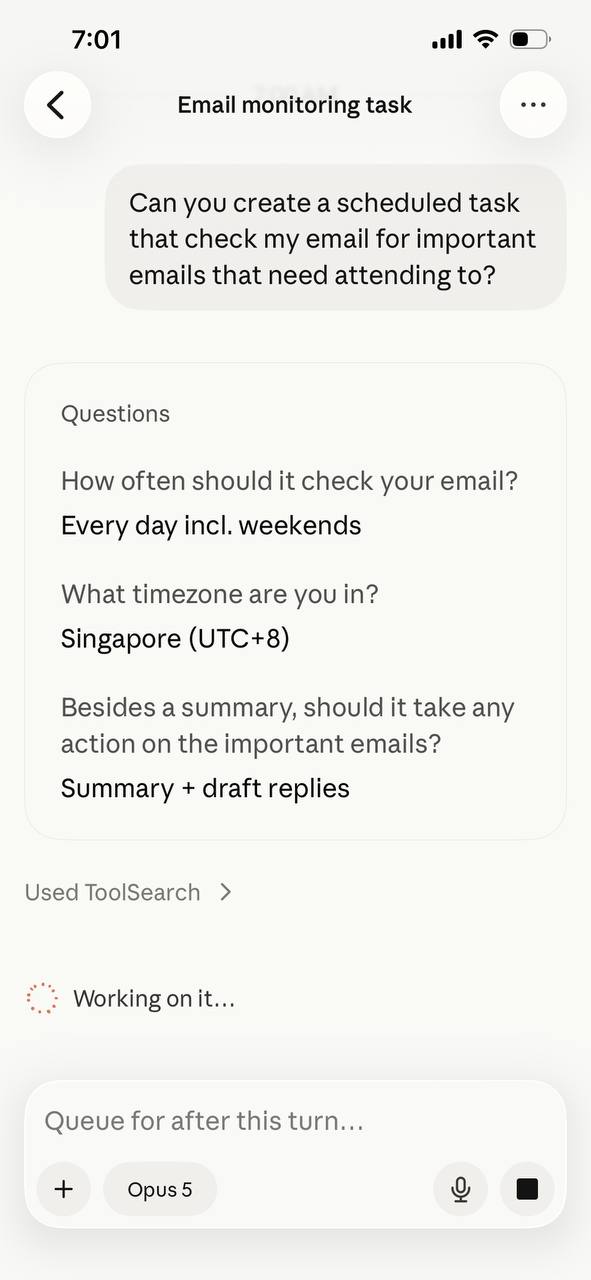
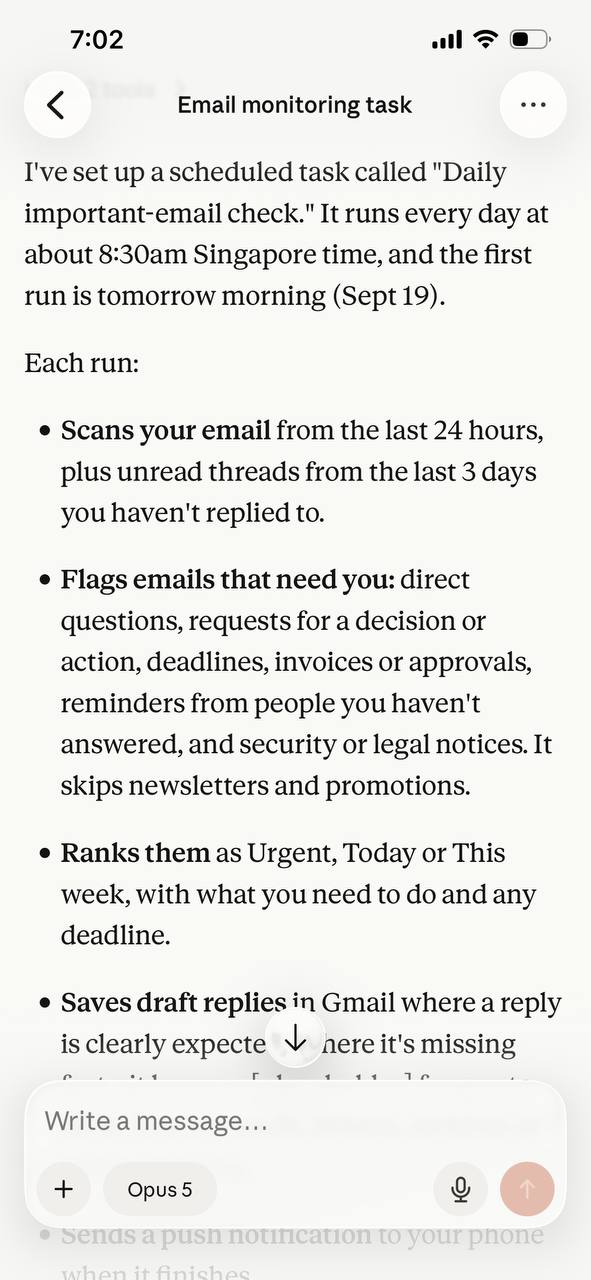
Scheduled routines
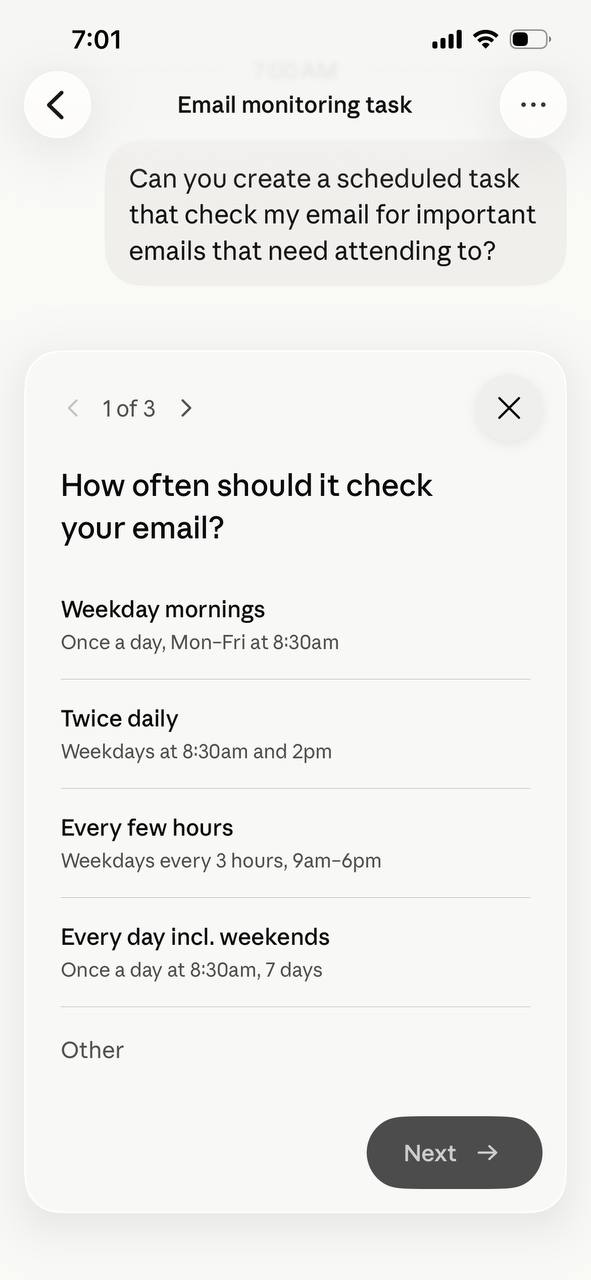
Ask Claude to help you create it
1Ask for a skill / routine
2Answer any questions it might ask
3Review the skill / routine
The one I use
Every morning at 8:30, it reads the inbox, ranks what came in Urgent · Today · This week and drafts the replies it can.
1
2
3
AI-assisted tasks
Productivity use cases
1
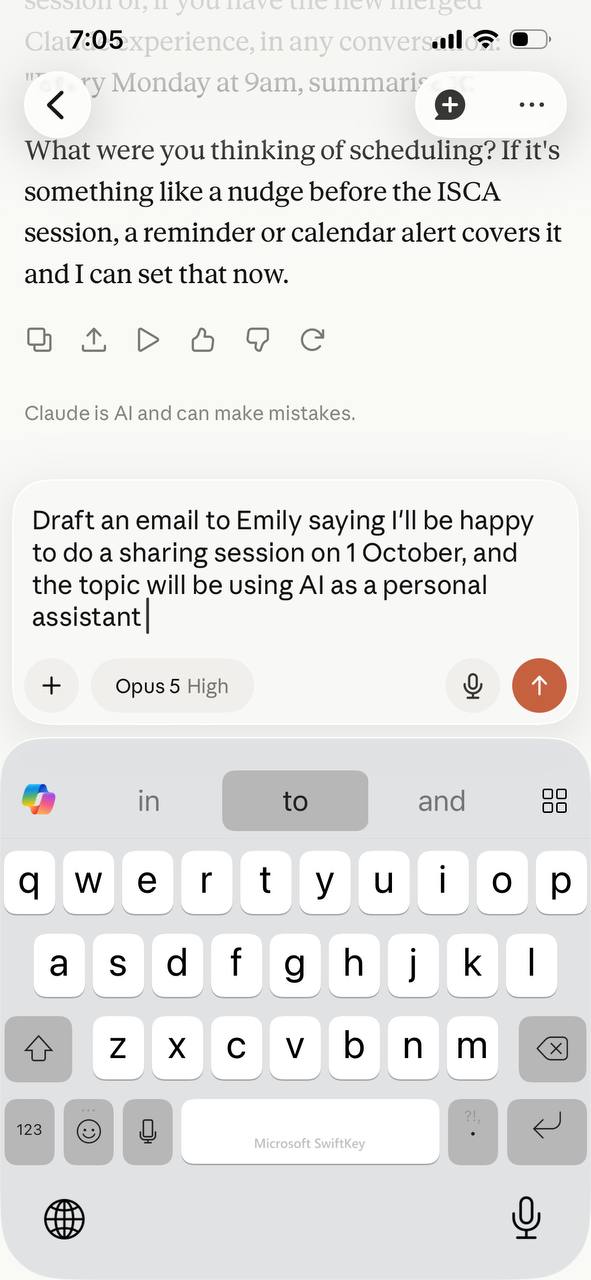
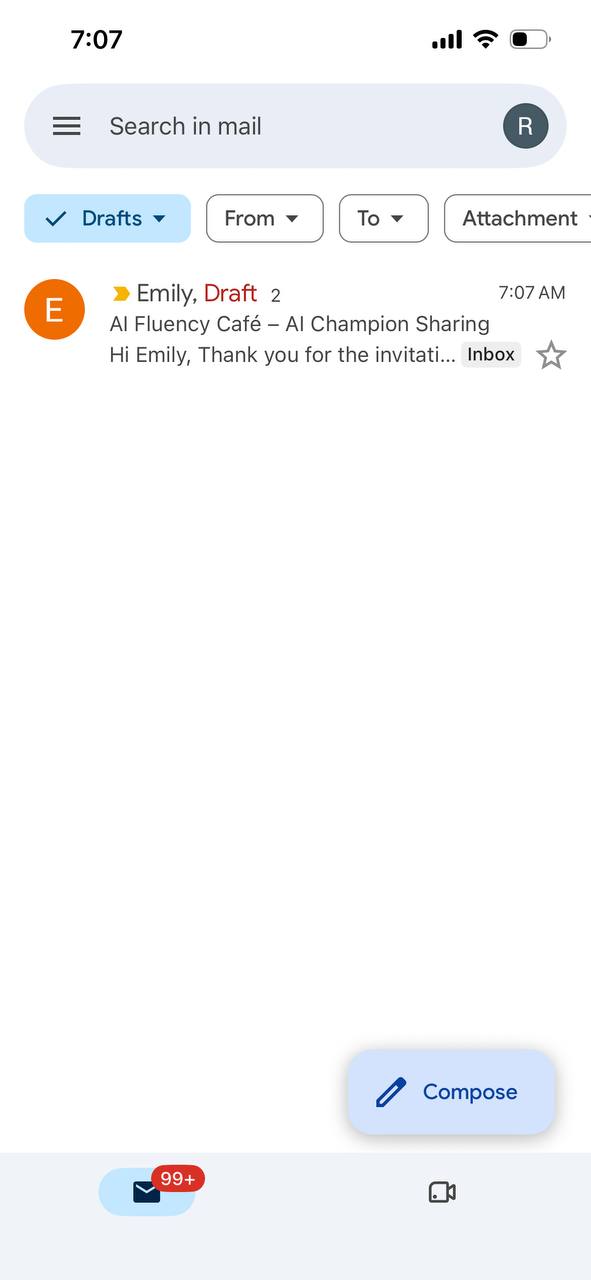
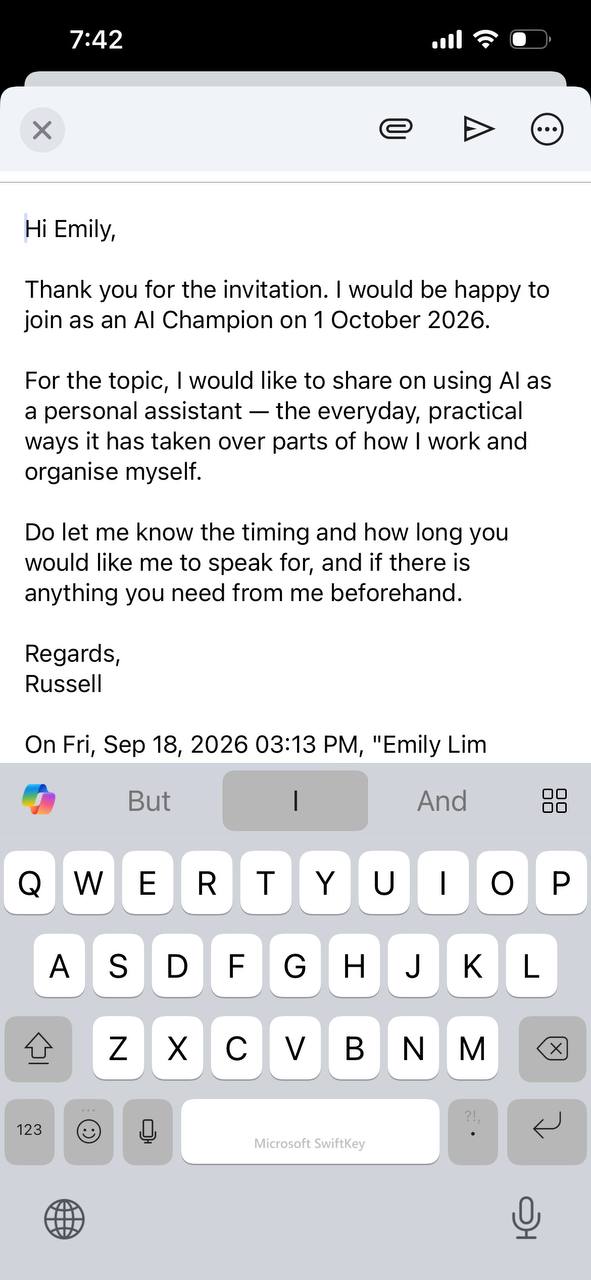
Email and Calendar
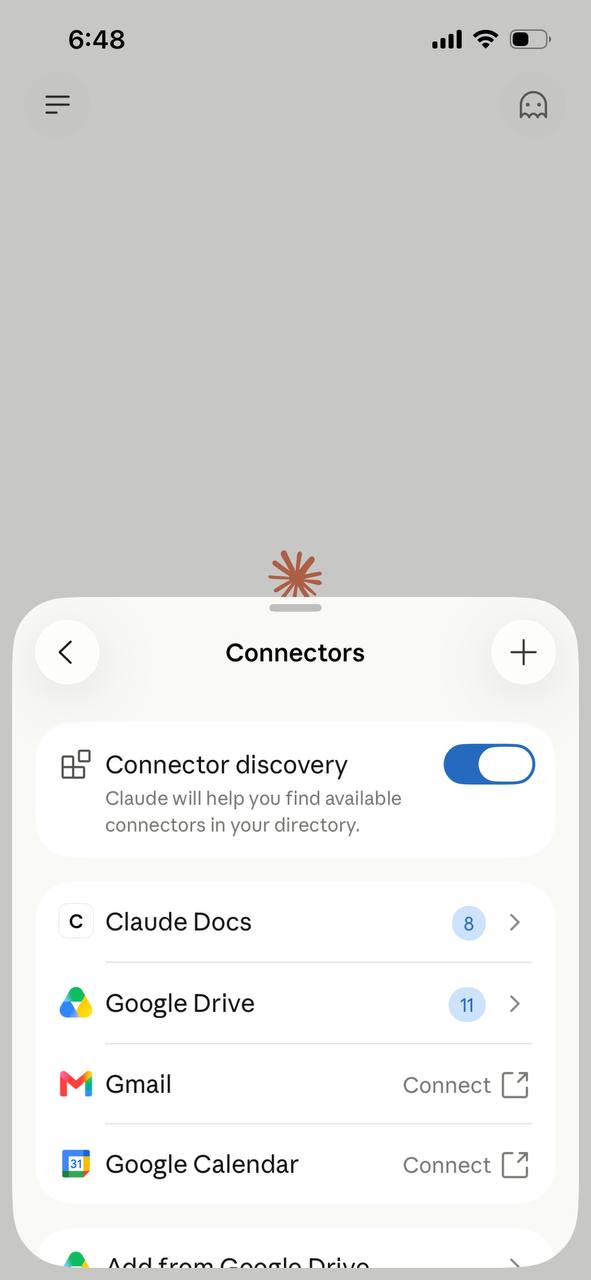
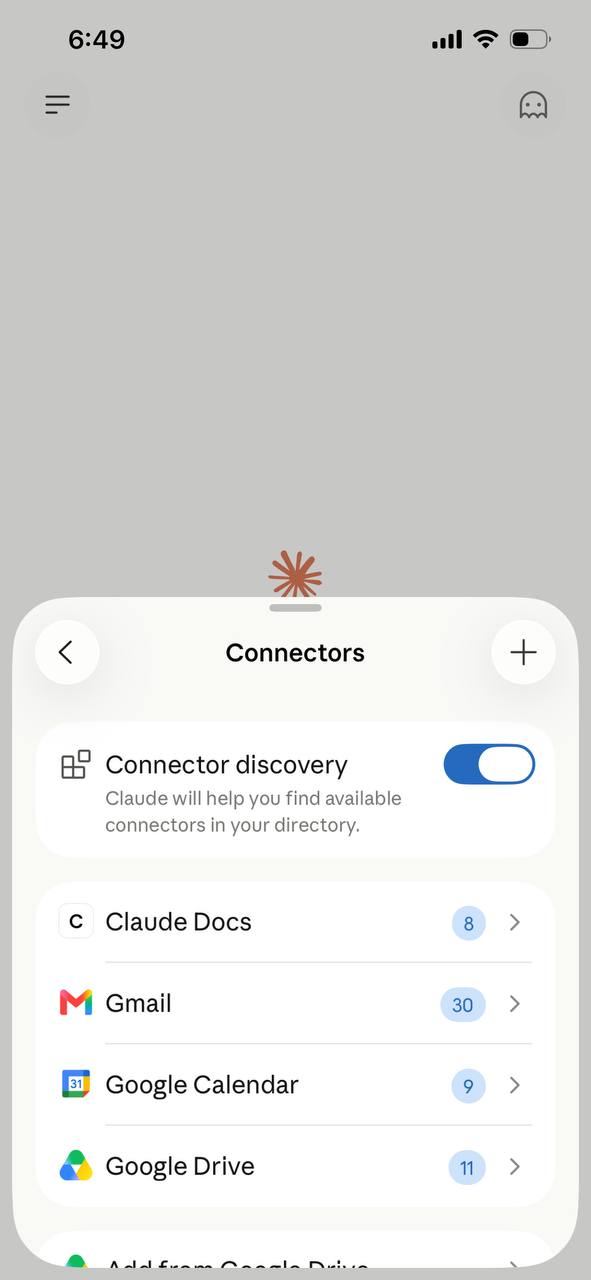
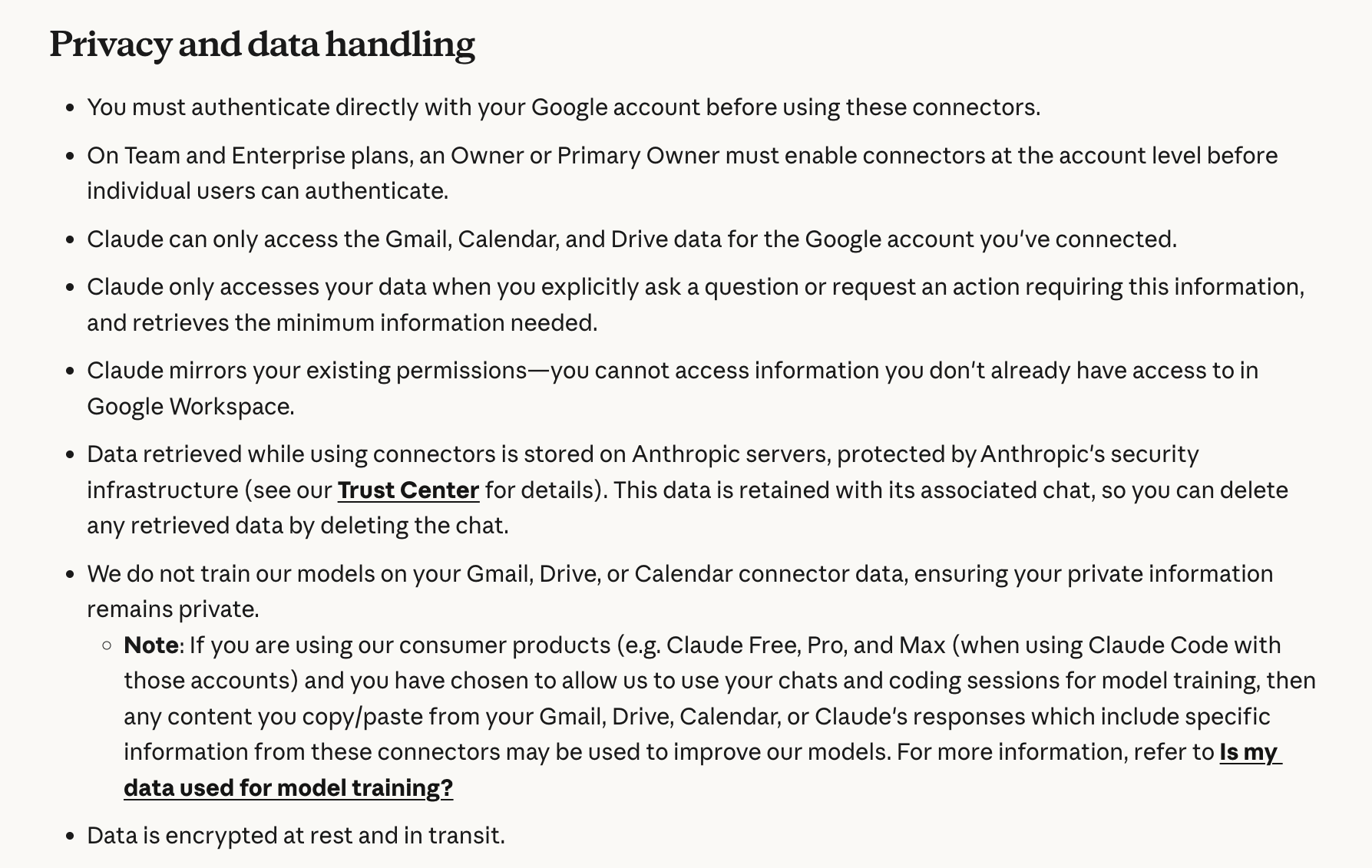
Connectors
2
Folder / Files
Cross-device, direct file creation and organisation